



PADFLASH V1.02 Update Guide:
|
VERSION 1.02 |
RELEASE
2025 |
OS SUPPORT
Win 7 / 10 / 11 |
INCLUDES
MEDC17 Checksum Fix |
What’s New in v1.02
| Improvement | Details |
| OS Compatibility | Full support for Windows 7 (SP1), Windows 10, and Windows 11 — 32 & 64-bit. |
| MEDC17 Checksum Fix | Resolved checksum calculation errors on MEDC17 ECU read/write operations. |
| USB Stability | Improved reconnection logic — significantly reduces ‘Connection Lost’ occurrences. |
| Driver Signing (SHA-256) | Super Driver updated with valid Microsoft signatures for Win10/11 enforcement. |
| Connection Lost Solution | New bundled utility to disable USB sleep and manage antivirus/firewall for ECU sessions. |
| Security Dongle Detection | Faster dongle enumeration on USB 3.0 hubs; fallback to USB 2.0 protocol on legacy systems. |
System Requirements
| Operating System | Windows 7 SP1 · Windows 10 · Windows 11 (32-bit & 64-bit) |
| USB | Powered USB 2.0 or USB 3.0 hub (mandatory — direct port may cause instability)pacakge come with usb 2.0 hub |
| RAM | 2 GB minimum · 4 GB recommended |
| Storage | 500 MB free disk space for installer and firmware cache |
| Permissions | Administrator account required for driver installation and launch |
| Security Dongle | Must be connected to the same USB hub as the Padflash device at startup |
Hardware Connection — Live Diagram
Connect all devices to the powered USB hub before launching any driver tool or Padflash V2.
| ■ PC → Hub
Command & data stream |
■ Hub → Padflash
ECU diagnostic channel |
■ Hub → Dongle
License verification |
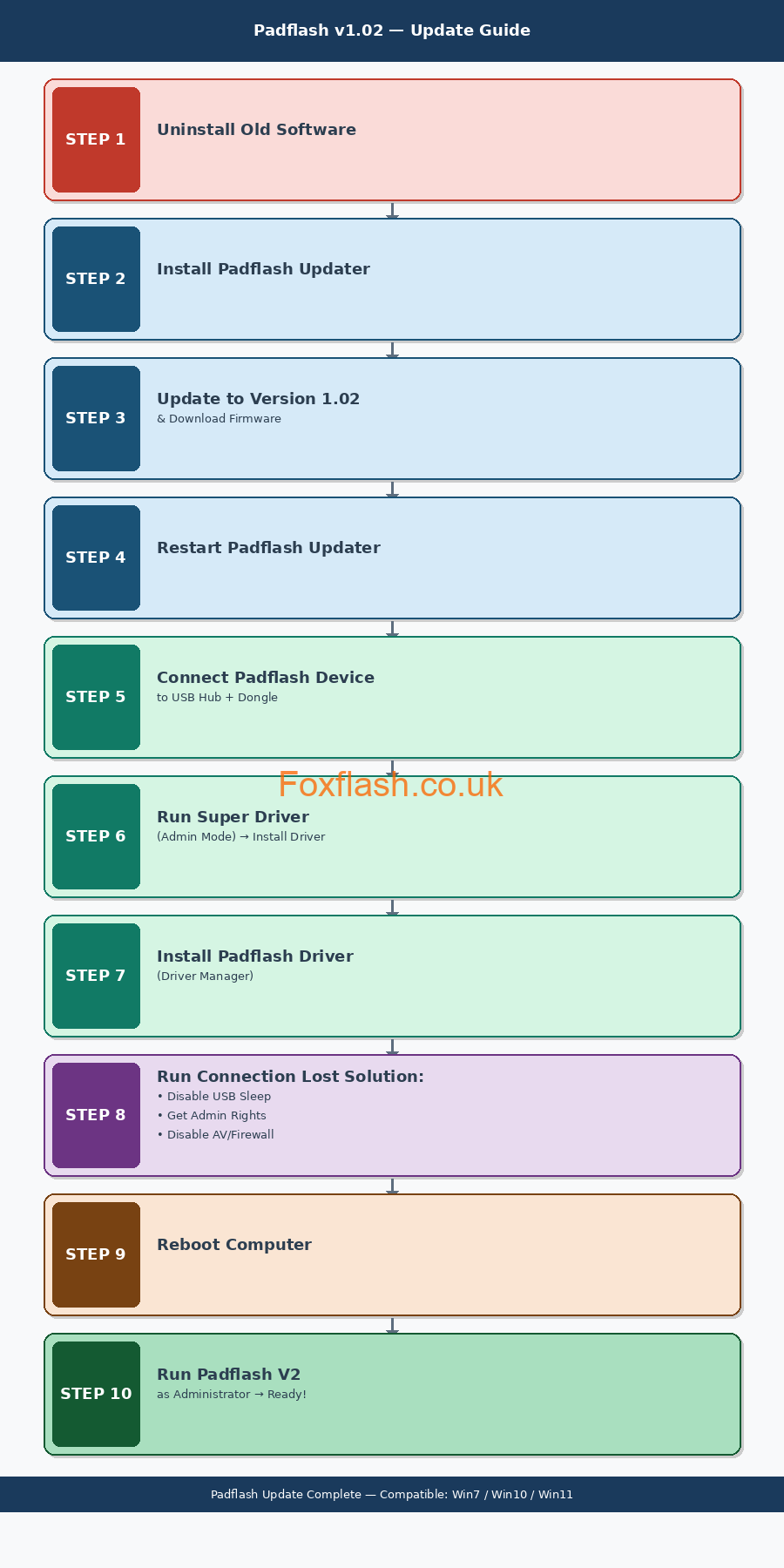
Step-by-Step Installation Procedure
Read all phases before starting. Complete steps in order — skipping any step may cause device connection failures.
| PHASE 1 — SOFTWARE UPDATE | |
| 01 | Uninstall previous Padflash software
Control Panel → Programs & Features → Padflash → Uninstall |
| 02 | Install Padflash Updater
Run PadflashUpdater_Setup.exe with Administrator privileges |
| 03 | Update to Version 1.02
Open Padflash Updater → click Update → wait for full download |
| 04 | Download firmware & restart Updater
Confirm download completes, then close and reopen Padflash Updater |
| PHASE 2 — HARDWARE & DRIVER SETUP | |
| 05 | Connect Padflash device to USB Hub
Plug device USB cable into any port on the powered hub |
| 06 | Connect Security Dongle to USB Hub
Plug dongle into a separate port on the same powered hub |
| 07 | Run Super Driver as Administrator
Right-click superdriver.exe → Run as Administrator |
| 08 | Click Install Driver inside Super Driver
Wait for the success notification before continuing |
| 09 | Install driver via Padflash Driver Tool
Open Padflash Driver → Install → accept all prompts |
| PHASE 3 — SYSTEM CONFIGURATION | |
| 10 | Run Padflash Connection Lost Solution
Right-click the utility shortcut → Run as Administrator |
| 11 | Disable USB Sleep / Power Management
Click ‘Disable USB Sleep’ inside the tool → confirm |
| 12 | Acquire Administrator Rights
Click ‘Gain Admin Rights’ → allow UAC prompt |
| 13 | Disable Antivirus & Firewall
Click ‘Disable AV & Firewall’ — re-enable after testing |
| PHASE 4 — FINAL LAUNCH | |
| 14 | Reboot the computer
Full shutdown and cold restart — mandatory, do not skip |
| 15 | Open Padflash Updater after reboot
Confirm version 1.02 is shown in the title bar |
| 16 | Launch Padflash V2 as Administrator
Desktop icon → right-click → Run as Administrator → ready |
Installation Flowchart
Troubleshooting
| Symptom | Recommended Action |
| Device not detected | Reconnect device and dongle to hub. Re-run Super Driver. Reinstall Padflash Driver. |
| Connection Lost error | Run Connection Lost Solution → Disable USB Sleep → Reboot. |
| Driver install fails | Temporarily disable Defender & antivirus. Always run Super Driver as Administrator. |
| MEDC17 checksum error | Ensure v1.02 is installed — the MEDC17 fix is exclusive to this release. |
| Software won’t launch | Always right-click Padflash V2 → Run as Administrator. |
| Windows 7 compatibility | Ensure SP1 is installed. Run sfc /scannow from an admin command prompt if drivers fail. |
| Dongle not recognized | Connect dongle directly to the powered USB hub. Avoid extension cables. |
Support
If issues persist after completing all steps, contact your authorized Padflash reseller with your device serial number and a screenshot of the error message.
Always launch Padflash V2 via Run as Administrator. Failure to do so is the leading cause of connection and licensing errors.
Learn more: https://www.foxflash.co.uk/